Boost Your Wi-Fi Speed by 20% in 15 Minutes: Practical Solutions for 2026 Home Networks

Boost Your Wi-Fi Speed by 20% in 15 Minutes: Practical Solutions for 2026 Home Networks
In the rapidly evolving digital landscape of 2026, a sluggish Wi-Fi connection is more than just an inconvenience; it’s a bottleneck to productivity, entertainment, and seamless connectivity. From high-definition streaming and online gaming to remote work and smart home automation, every aspect of our lives relies heavily on a robust and reliable internet connection. If you’ve been grappling with buffering videos, dropped calls, or slow downloads, you’re in the right place. This comprehensive guide will show you how to boost Wi-Fi speed by a significant margin, often by 20% or more, in as little as 15 minutes, using practical and effective solutions tailored for today’s advanced home networks.
We understand that not everyone is a networking expert, which is why we’ve broken down complex concepts into easy-to-follow steps. We’ll cover everything from simple router adjustments to more advanced network configurations, ensuring that you have all the tools and knowledge to optimize your wireless experience. Get ready to transform your internet experience and unlock the full potential of your home network.
Understanding the Fundamentals: Why is Your Wi-Fi Slow?
Before we dive into solutions to boost Wi-Fi speed, it’s crucial to understand the common culprits behind slow connections. Diagnosing the problem accurately is the first step towards an effective fix. Here are some of the most prevalent issues affecting home Wi-Fi networks in 2026:
1. Router Placement and Obstacles
Your Wi-Fi router isn’t just a black box that spits out internet. It’s a radio transmitter, and like all radio signals, Wi-Fi can be significantly affected by its environment. Walls, floors, large appliances (like refrigerators and microwaves), and even furniture can absorb or reflect Wi-Fi signals, leading to dead zones and reduced speeds. The further you are from your router, or the more obstacles between you and it, the weaker the signal and the slower your connection will be.
2. Network Congestion and Interference
We live in an increasingly connected world. Your home network might be sharing airwaves with your neighbors’ Wi-Fi, Bluetooth devices, cordless phones, and even baby monitors. This invisible battle for bandwidth can cause significant interference, leading to slower speeds and unstable connections. Furthermore, if you have many devices connected to your own network – streaming 4K content on one, gaming on another, and video conferencing on a third – your network can become congested, slowing down all connected devices.
3. Outdated Hardware and Firmware
Technology advances at a rapid pace. An older router, especially one that doesn’t support the latest Wi-Fi standards (like Wi-Fi 6/6E or soon, Wi-Fi 7), might not be capable of delivering the speeds your Internet Service Provider (ISP) promises, or handling the demands of modern devices. Similarly, outdated firmware on your router can lead to performance issues, security vulnerabilities, and compatibility problems.
4. Bandwidth Hogs and Unnecessary Background Processes
Sometimes, the issue isn’t with your network at all, but with specific devices or applications. Large downloads, cloud backups, automatic updates, or even certain browser extensions can consume a significant portion of your bandwidth, leaving less for other activities. Identifying and managing these bandwidth hogs can free up considerable speed.
5. ISP Throttling and Network Issues
While less common, sometimes the problem lies with your Internet Service Provider. They might be experiencing network issues, or in rare cases, intentionally throttling your connection (though this practice is heavily regulated in many regions). It’s always a good idea to rule out external factors.
By understanding these common issues, you’re already halfway to effectively troubleshooting and optimizing your home network to boost Wi-Fi speed. Now, let’s get into the actionable steps.
The 15-Minute Wi-Fi Boost Challenge: Quick Fixes for Immediate Impact
Ready to see immediate results? These quick adjustments can often significantly boost Wi-Fi speed without requiring any new equipment or technical expertise. Dedicate 15 minutes to these steps, and you might be surprised by the difference.
Step 1: Optimal Router Placement (5 Minutes)
This is perhaps the most impactful change you can make without spending a dime. Think of your router as the heart of your home network.
- Central Location: Place your router in a central location in your home, ideally as close to the center of your most used devices as possible. Avoid corners or placing it in a closet.
- Elevated Position: Wi-Fi signals tend to spread downwards. Placing your router on a high shelf or on top of a piece of furniture can help signals travel further and more effectively throughout your home.
- Away from Obstacles: Keep your router away from large metal objects, thick concrete walls, microwaves, cordless phones, and other electronics that can interfere with its signal. The fewer obstacles, the better the signal propagation.
- Antenna Orientation: If your router has adjustable antennas, try orienting one vertically and one horizontally. This can help broadcast signals more effectively to devices on different floors or at varying distances.
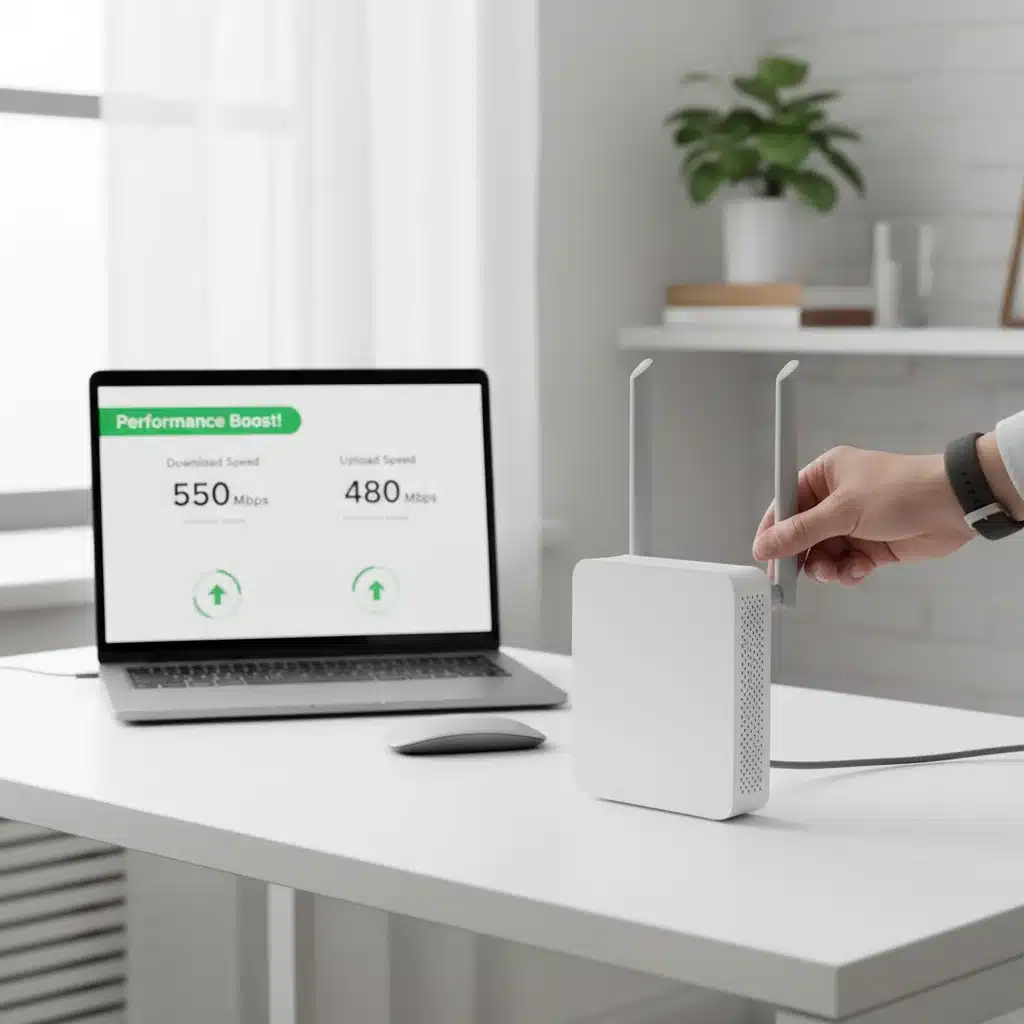
After adjusting the placement, run a speed test on a device in a previously problematic area. You might already see a noticeable improvement.
Step 2: Restart Your Router and Modem (2 Minutes)
It sounds cliché, but a simple reboot can resolve a surprising number of network issues. Just like your computer, your router and modem can accumulate temporary data and get bogged down. A restart clears their memory, refreshes their connections, and often resolves minor glitches that might be slowing things down.
- Unplug both your modem and router from their power sources.
- Wait for at least 30 seconds (some suggest a full minute for a complete power cycle).
- Plug your modem back in first and wait for it to fully boot up (usually indicated by stable lights).
- Then, plug your router back in and wait for it to fully boot up.
Perform another speed test. This simple act can often boost Wi-Fi speed and stability.
Step 3: Disconnect Unused Devices (3 Minutes)
Every device connected to your Wi-Fi network consumes a portion of your bandwidth. If you have old phones, tablets, or smart devices that are no longer in use but still connected, they could be silently hogging resources with background updates or data transfers.
- Go through your connected devices list (usually accessible via your router’s admin interface or a dedicated app).
- Identify and disconnect any devices that are not actively being used.
- Consider putting smart home devices that don’t require constant connectivity on a schedule or turning them off when not needed.
This frees up bandwidth for your active devices, helping to boost Wi-Fi speed where it matters most.
Step 4: Update Router Firmware (5 Minutes – initial check)
Keeping your router’s firmware up to date is crucial for performance, security, and access to new features. Manufacturers frequently release updates that improve stability, fix bugs, and optimize wireless performance.
- Access your router’s administration page (usually by typing its IP address, like
192.168.1.1or192.168.0.1, into your web browser). - Log in with your administrator credentials (if you haven’t changed them, they’re often on a sticker on the router).
- Look for a section titled ‘Firmware Update’, ‘System Update’, or ‘Maintenance’.
- Check for available updates and follow the instructions to install them. This process can sometimes take longer than 5 minutes, but the initial check and initiation often fall within that timeframe.
While the actual update process might take longer, the initial check and starting the update can be done quickly. A firmware update can significantly boost Wi-Fi speed and overall network health.
Advanced Strategies to Supercharge Your Home Network
If the quick fixes didn’t provide the boost you were hoping for, or if you’re looking for even greater optimization, these advanced strategies are for you. They might require a bit more technical comfort, but the rewards in terms of speed and reliability are substantial.
1. Optimize Wi-Fi Channels to Reduce Interference
Imagine Wi-Fi channels as lanes on a highway. If too many cars (devices/networks) are on the same lane, traffic slows down. Wi-Fi operates on specific channels, and if your router is using a congested channel, you’ll experience interference and slower speeds. This is especially true for the 2.4 GHz band, which has fewer non-overlapping channels.
- Use a Wi-Fi Analyzer App: Download a Wi-Fi analyzer app (available for smartphones and computers) to scan your surroundings. These apps show you which channels your neighbors’ networks are using and the signal strength of each.
- Access Router Settings: Log into your router’s administration page.
- Change Wi-Fi Channel: Navigate to the wireless settings (often under ‘Wireless’ or ‘Wi-Fi Settings’). You’ll find options to change the Wi-Fi channel for both 2.4 GHz and 5 GHz bands.
- Recommended Channels: For the 2.4 GHz band, stick to channels 1, 6, or 11, as these are the only non-overlapping channels. For the 5 GHz band, there are more non-overlapping channels, making interference less of an issue, but selecting a less-used one can still help.
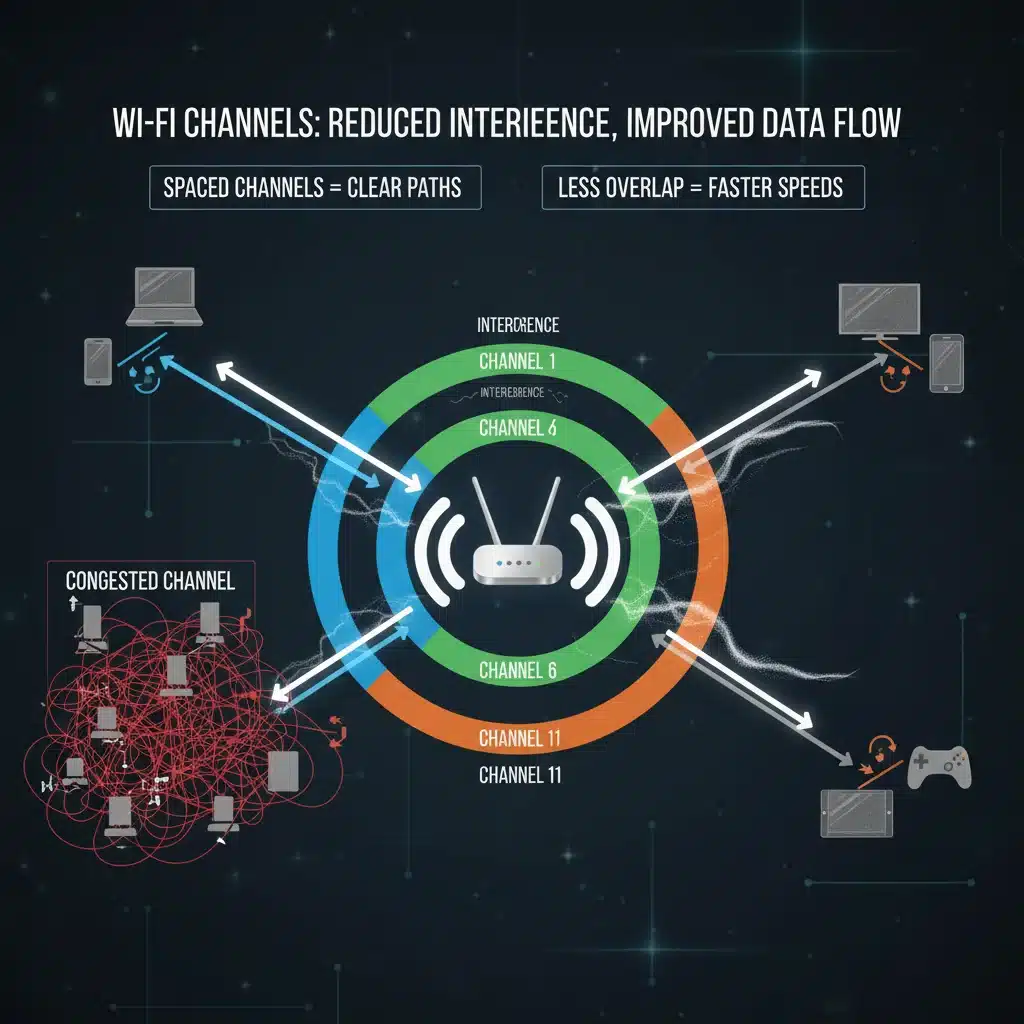
Experiment with different channels and re-test your speed. This can be a game-changer to boost Wi-Fi speed in dense urban environments.
2. Leverage Dual-Band (2.4 GHz vs. 5 GHz) Wisely
Most modern routers are dual-band, meaning they broadcast Wi-Fi signals on two different frequency bands: 2.4 GHz and 5 GHz. Each has its strengths and weaknesses:
- 2.4 GHz Band: Offers a wider range and better penetration through walls, but it’s slower and more susceptible to interference (due to more devices using it and fewer non-overlapping channels). Best for devices further from the router or those that don’t require high bandwidth (e.g., smart home devices, older laptops).
- 5 GHz Band: Provides much faster speeds and less interference, but has a shorter range and struggles more with obstacles. Ideal for high-bandwidth activities and devices close to the router (e.g., gaming consoles, streaming devices, newer smartphones/laptops).
Configure your router to use separate SSIDs (network names) for each band (e.g., ‘MyHomeWi-Fi_2.4GHz’ and ‘MyHomeWi-Fi_5GHz’). Then, manually connect your devices to the most appropriate band. For instance, your smart TV in the living room might connect to 5 GHz, while a security camera in the garage connects to 2.4 GHz. This intelligent band management is key to effectively boost Wi-Fi speed for all your devices.
3. Implement Quality of Service (QoS) Settings
Quality of Service (QoS) is a router feature that allows you to prioritize certain types of network traffic or specific devices over others. If you frequently experience lag during online gaming or video calls while others are streaming, QoS can help.
- Access Router Settings: Log into your router’s administration page.
- Find QoS Settings: Look for a ‘QoS’, ‘Traffic Prioritization’, or ‘Bandwidth Management’ section.
- Prioritize Traffic: You can often prioritize traffic by application (e.g., video streaming, gaming, VoIP) or by device. For example, you can give your work laptop or gaming console higher priority during peak hours.
Properly configured QoS can ensure that critical applications always have enough bandwidth, leading to a smoother and more responsive experience, thus helping to boost Wi-Fi speed for your most important tasks.
4. Consider a Wi-Fi Mesh System or Extenders
If your home is large, has multiple floors, or suffers from persistent dead zones despite optimal router placement, a single router might not be enough. This is where mesh Wi-Fi systems or range extenders come in.
- Mesh Wi-Fi Systems: These consist of multiple interconnected nodes that create a single, seamless Wi-Fi network throughout your home. They offer excellent coverage, smart device switching, and are generally easy to set up. They are a significant upgrade for larger homes and a powerful way to boost Wi-Fi speed across all areas.
- Wi-Fi Range Extenders/Boosters: These devices capture your existing Wi-Fi signal and rebroadcast it, extending coverage. While generally less robust than mesh systems (they often create a separate network and can halve bandwidth), they are a more affordable solution for smaller coverage gaps.
Evaluate your home’s layout and your budget to decide which solution is best for extending your network’s reach and improving speed in all corners.
5. Upgrade Your Hardware: Router and Network Adapters
Sometimes, the most effective solution to boost Wi-Fi speed is to upgrade your gear. Technology evolves, and older hardware simply can’t keep up with modern demands.
- Newer Router: If your router is more than 3-4 years old, especially if it doesn’t support Wi-Fi 6 (802.11ax) or Wi-Fi 6E, consider upgrading. Newer routers offer significantly faster speeds, better efficiency, improved security, and enhanced multi-device performance. Wi-Fi 6/6E routers are designed for the high-density networks of 2026.
- Network Adapters: Ensure your devices (laptops, PCs) have modern Wi-Fi adapters that support the latest standards. Even with a brand-new Wi-Fi 6 router, an older laptop with an 802.11n adapter won’t be able to achieve the maximum speeds. USB Wi-Fi adapters are an easy way to upgrade older devices.
- Ethernet Backhaul: For devices that require the absolute fastest and most stable connection (e.g., gaming PCs, media servers), a wired Ethernet connection is always superior to Wi-Fi. If possible, run Ethernet cables to these critical devices.
While an investment, upgrading your hardware provides the most substantial and long-lasting improvements to your home network’s speed and reliability.
Maintaining Your Optimized Network for Long-Term Performance
Optimizing your Wi-Fi isn’t a one-time task. To ensure your network continues to perform at its peak and to consistently boost Wi-Fi speed, regular maintenance is essential.
1. Regular Router Firmware Updates
Make it a habit to check for and install firmware updates for your router every few months. These updates often contain security patches, performance enhancements, and bug fixes that are vital for a healthy network.
2. Monitor Network Activity
Periodically check your router’s administration page or use network monitoring tools to see which devices are connected and how much bandwidth they are consuming. This helps you identify any unauthorized connections or bandwidth-hogging applications.
3. Change Wi-Fi Password Regularly
Changing your Wi-Fi password periodically enhances security and ensures that only authorized devices are connected to your network. This simple step can prevent unwanted guests from slowing down your connection.
4. Clean Up Your Device List
Just like disconnecting unused devices, regularly reviewing your router’s connected device list and removing old, forgotten, or unauthorized devices can help free up bandwidth and improve security.
5. Test Your Speed Regularly
Use online speed test tools (like Speedtest.net or Fast.com) to regularly monitor your internet speed. This helps you track performance over time and quickly identify if there’s a problem that needs addressing. If speeds drop significantly, you can then revisit the troubleshooting steps outlined in this guide.
The Future of Home Wi-Fi: Looking Beyond 2026
As we move further into the decade, expect even more advancements in Wi-Fi technology. Wi-Fi 7 (802.11be), also known as Extremely High Throughput (EHT), is on the horizon, promising even faster speeds, lower latency, and greater capacity through technologies like 320 MHz channels, 4096-QAM, and Multi-Link Operation (MLO). These innovations will further enhance our ability to boost Wi-Fi speed and support the growing number of demanding applications and devices in our homes.
The integration of AI and machine learning into home networking devices will also become more prevalent, allowing routers to intelligently manage traffic, detect and mitigate interference, and self-optimize for the best possible performance without manual intervention. Security protocols will continue to evolve, offering stronger protection against cyber threats.
Staying informed about these developments and upgrading your hardware when appropriate will be key to maintaining a cutting-edge and high-performing home network. For now, the strategies outlined in this guide provide a robust framework for optimizing your current setup and enjoying a significantly faster and more reliable internet experience.
Conclusion: Unleash Your Network’s Full Potential
A slow Wi-Fi connection doesn’t have to be a permanent fixture in your home. By understanding the common causes of slowdowns and implementing the practical solutions discussed in this guide, you can significantly boost Wi-Fi speed and transform your digital experience. From simple router placement adjustments to more advanced channel optimization and hardware upgrades, each step contributes to a more robust and responsive home network.
Remember, the goal is not just about raw speed but about a seamless and reliable connection that supports all your online activities in 2026 and beyond. Take the 15-minute challenge, apply the advanced strategies, and commit to regular network maintenance. You’ll soon be enjoying a faster, more stable, and more efficient Wi-Fi connection that truly keeps pace with your modern lifestyle. Say goodbye to buffering and hello to a world of uninterrupted connectivity!