Smartphone Privacy Settings 2026: Essential Adjustments for Data Security
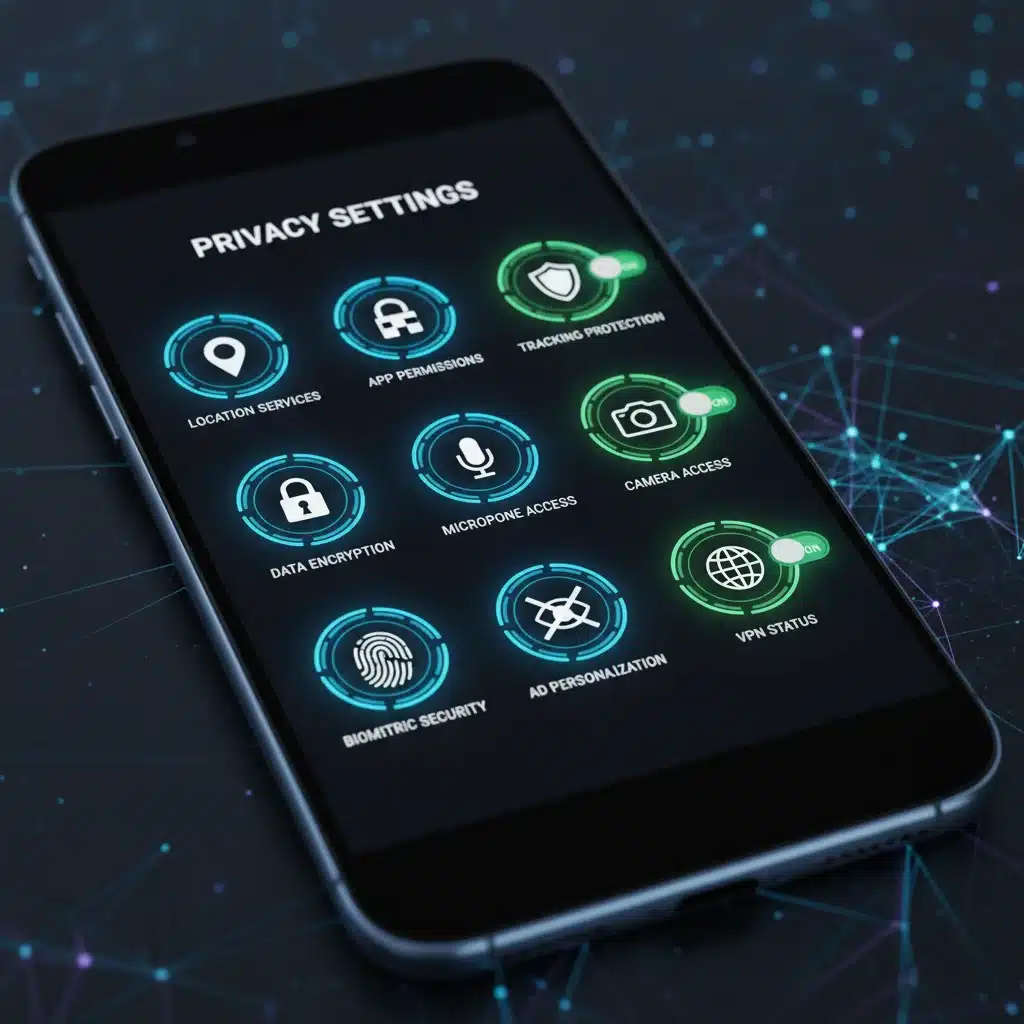
The Top 3 Privacy Settings You Must Adjust on Your Smartphone Today for 2026 Security
In an increasingly digital world, our smartphones have become extensions of ourselves. They hold our most intimate conversations, financial details, health data, and professional secrets. As technology rapidly advances, so do the methods employed by those who seek to exploit our personal information. With 2026 just around the corner, now is the critical time to re-evaluate and fortify your smartphone privacy settings. Ignoring these crucial adjustments could leave you vulnerable to sophisticated cyber threats and data breaches that are becoming more prevalent and complex.
The landscape of digital privacy is constantly shifting. What was considered secure last year might be easily compromised tomorrow. This article delves into the three most vital privacy settings you need to address on your smartphone right now to ensure robust security in the coming years. We’ll explore why these settings are paramount, how to locate and configure them, and the potential risks of leaving them unaddressed. By taking proactive steps today, you can significantly enhance your digital resilience and protect your personal data from prying eyes and malicious actors.
Understanding and implementing these changes isn’t just about avoiding problems; it’s about empowering yourself in the digital realm. It’s about taking control of your digital footprint and ensuring that your personal information remains personal. Let’s dive into these essential adjustments for your smartphone privacy settings.
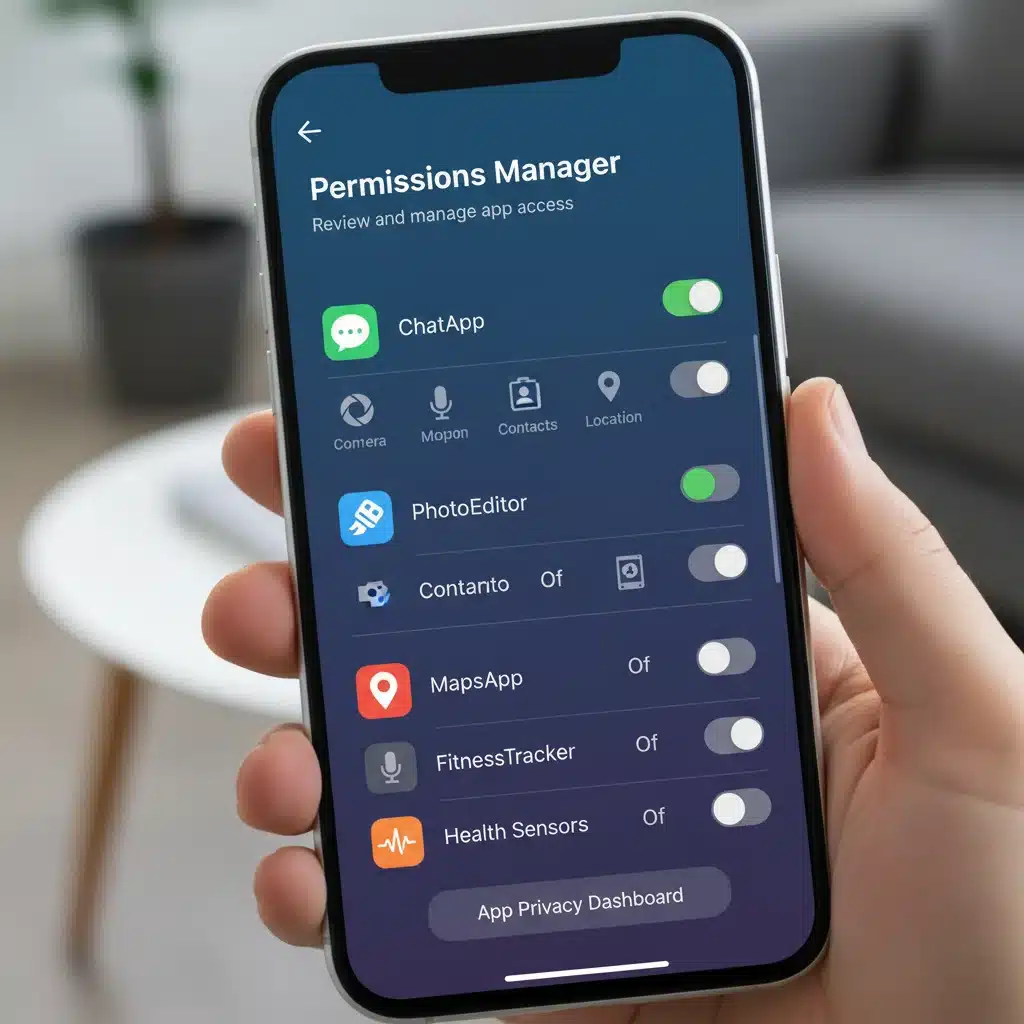
1. Re-evaluate and Restrict App Permissions Rigorously
One of the most significant gateways for data leakage on your smartphone is through app permissions. Every time you download a new application, whether it’s a game, a productivity tool, or a social media platform, it requests access to various functions and data on your device. While some permissions are necessary for an app to function (e.g., a camera app needing access to your camera), many apps request far more access than they actually require. This over-permissioning creates a significant vulnerability. By 2026, with the proliferation of AI-driven data analysis, even seemingly innocuous data points can be aggregated to create detailed profiles of users, making the meticulous management of smartphone privacy settings regarding app permissions absolutely critical.
Why App Permissions Matter More Than Ever
- Data Harvesting: Many apps, especially free ones, monetize user data. Granting access to your contacts, location, microphone, or photos can allow them to collect and sell this information to advertisers or other third parties.
- Security Risks: A compromised app with extensive permissions can become a backdoor for hackers to access your sensitive data, even if the app itself isn’t directly malicious.
- Privacy Invasion: An app with microphone access could theoretically listen to your conversations, or one with camera access could record you, without your explicit knowledge or consent, beyond its intended function.
- Targeted Advertising: Excessive permissions feed sophisticated tracking mechanisms that lead to highly targeted, and often intrusive, advertisements.
How to Adjust App Permissions (iOS & Android)
The process for adjusting app permissions is similar across major smartphone operating systems, though the exact wording might vary slightly.
For iOS Users:
- Go to Settings.
- Scroll down and tap on Privacy & Security.
- Here, you’ll see a list of categories like Photos, Camera, Microphone, Location Services, Contacts, etc. Tap on each category to see which apps have access.
- Alternatively, you can scroll further down in Settings to find individual apps. Tap on an app, and you’ll see its specific permissions.
- Review each app’s access carefully. If an app doesn’t need access to your camera or microphone for its core function, revoke that permission. For instance, a calculator app has no legitimate reason to access your location or contacts.
- For Location Services, consider changing access from ‘Always’ to ‘While Using the App’ or ‘Ask Next Time’.
For Android Users:
- Go to Settings.
- Tap on Apps or Apps & Notifications (the name may vary slightly depending on your Android version).
- Tap on Permission Manager or App Permissions.
- You’ll see a list of permission categories (e.g., Location, Camera, Microphone, Contacts, Files and Media). Tap on each category.
- Within each category, you’ll see which apps have been granted that permission. Review them and revoke access for any app that doesn’t genuinely need it.
- You can also go back to the main ‘Apps’ list, tap on an individual app, and then tap ‘Permissions’ to manage its access directly.
Make this a regular audit. New apps, or updates to existing ones, can sometimes re-enable permissions or request new ones. Regularly reviewing your app permissions is a foundational step in maintaining strong smartphone privacy settings.
2. Disable Ad Tracking and Personalization Features
Have you ever noticed how an ad for something you just talked about or searched for suddenly appears on your social media feed? This isn’t magic; it’s a result of extensive ad tracking and personalization features built into your smartphone’s operating system and individual applications. While often framed as providing a ‘more relevant’ user experience, these features are essentially data vacuums, collecting vast amounts of information about your habits, interests, and even your real-world movements. By 2026, these tracking capabilities will only become more sophisticated, making it imperative to adjust your smartphone privacy settings to limit this pervasive surveillance.
The Hidden Costs of Ad Tracking
- Loss of Anonymity: Your digital profile becomes incredibly detailed, potentially linking your online behavior to your real-world identity.
- Data Brokerage: Your data is often sold to data brokers, who then compile even more comprehensive profiles that can be used for various purposes, some of which might be ethically questionable.
- Security Risks: A centralized repository of your personal data, even if held by an advertising network, is a potential target for cybercriminals.
- Battery Drain: Constant tracking and ad fetching can contribute to faster battery depletion.
How to Disable Ad Tracking and Personalization
Disabling these features requires adjusting settings in both your operating system and potentially within individual apps.
For iOS Users:
- Go to Settings.
- Tap on Privacy & Security.
- Scroll down to Tracking. Ensure ‘Allow Apps to Request to Track’ is off. This prompts apps to ask for your permission before tracking you across other apps and websites, but it’s best to disable this feature entirely if privacy is your main concern.
- Go back to Privacy & Security and scroll down to Apple Advertising. Turn off ‘Personalized Ads’.
- Consider using Safari’s built-in privacy features: In Settings > Safari, enable ‘Prevent Cross-Site Tracking’ and ‘Block All Cookies’ (though blocking all cookies might affect some website functionality).
For Android Users:
- Go to Settings.
- Tap on Google (or Google Services).
- Tap on Ads.
- Enable ‘Opt out of Ads Personalization’ (or ‘Delete Advertising ID’ and then ‘Get New Advertising ID’ to reset your identifier).
- Go back to Google and tap on Manage your Google Account.
- Navigate to Data & privacy.
- Under ‘History settings’, review and pause ‘Web & App Activity’, ‘Location History’, and ‘YouTube History’ if you wish to limit data collection. You can also set up auto-delete for these histories.
- Under ‘Ad settings’, turn off ‘Ad Personalization’.
- For specific apps, check their individual settings for options related to advertising or data collection.
While completely eliminating all forms of tracking might be challenging in today’s digital ecosystem, significantly reducing it through these smartphone privacy settings is a powerful step towards safeguarding your digital footprint in 2026.
3. Strengthen Your Device and Account Security Protocols
The foundation of all smartphone privacy settings rests on the strength of your device and account security. Even the most meticulously configured app permissions won’t protect you if your device itself is easily accessible or your accounts are vulnerable. As we approach 2026, cybercriminals are employing increasingly sophisticated methods to gain unauthorized access to devices and online accounts. This makes robust authentication, encryption, and proactive security measures non-negotiable. Think of your smartphone as a digital vault; you wouldn’t leave a vault unlocked, and similarly, you shouldn’t leave your smartphone unprotected.
Key Security Protocols to Fortify
- Strong Authentication: Passcodes, biometrics, and multi-factor authentication are your first lines of defense.
- Data Encryption: Ensuring your device’s data is encrypted protects it even if the device falls into the wrong hands.
- Software Updates: Regular updates often contain critical security patches that close vulnerabilities.
- Account-Level Security: Strong, unique passwords and 2FA on all important online accounts are paramount.
How to Strengthen Device and Account Security
Device-Level Security:
- Enable Strong Passcode/Biometrics:
- iOS: Go to Settings > Face ID & Passcode (or Touch ID & Passcode). Set a complex alphanumeric passcode instead of a simple 4-digit PIN. Ensure Face ID/Touch ID is enabled and configured correctly.
- Android: Go to Settings > Security & privacy > Device unlock (or similar). Set a strong PIN, pattern, or password. Enable fingerprint or face unlock.
- Enable Automatic Lock: Set your screen to lock after a very short period of inactivity (e.g., 30 seconds to 1 minute).
- Enable ‘Find My’ Feature (or equivalent):
- iOS: Settings > [Your Name] > Find My > Find My iPhone. This allows you to locate, lock, or erase your device remotely if it’s lost or stolen.
- Android: Settings > Google > Find My Device. Ensure it’s enabled.
- Keep Software Updated: Always install operating system updates as soon as they are available. These often contain critical security patches.
- Review Lock Screen Notifications: Limit what information is displayed on your lock screen to prevent sensitive data from being visible to unauthorized individuals.
Account-Level Security:
- Use Strong, Unique Passwords: Never reuse passwords across multiple accounts. Use a password manager to generate and store complex, unique passwords for all your online services.
- Enable Two-Factor Authentication (2FA) Everywhere: For every online account that offers it (email, social media, banking, cloud storage), enable 2FA. This adds an extra layer of security, requiring a second verification method (like a code from an authenticator app or an SMS) in addition to your password.
- Regularly Review Connected Accounts: Check your Google, Apple, and social media account settings for third-party apps that have access. Revoke access for any apps you no longer use or don’t recognize.
- Be Wary of Phishing: Never click on suspicious links or open attachments from unknown senders. Phishing remains a primary method for account compromise.
By diligently managing these device and account security protocols, you create a formidable barrier against unauthorized access, significantly bolstering your overall smartphone privacy settings for 2026 and beyond.

Additional Best Practices for Enduring Smartphone Privacy
While the top three settings discussed are paramount, maintaining robust smartphone privacy is an ongoing commitment. Here are several additional best practices that complement those adjustments and will serve you well into 2026 and beyond:
1. Be Mindful of Public Wi-Fi
Public Wi-Fi networks, while convenient, are often unsecured. This means that data transmitted over these networks can be intercepted by malicious actors. Avoid conducting sensitive transactions (online banking, shopping with credit card details) when connected to public Wi-Fi. If you must use it, employ a Virtual Private Network (VPN) to encrypt your internet traffic.
2. Encrypt Your Device (If Not Already)
Most modern smartphones encrypt data by default, but it’s worth double-checking. Encryption ensures that if your device is lost or stolen, the data on it is unreadable without the correct decryption key (usually tied to your passcode). This is a critical component of your smartphone privacy settings.
How to Check/Enable Encryption:
- iOS: iPhones are encrypted by default when a passcode is set.
- Android: Go to Settings > Security & privacy > Encryption & credentials (or similar). Look for ‘Encrypt phone’ or ‘Encrypt tablet’. Newer Android devices are usually encrypted by default.
3. Regularly Clear Browser Data and Cookies
Your web browser stores a wealth of information about your online activities, including browsing history, cookies, and cached data. Regularly clearing this information can help reduce tracking and improve privacy.
How to Clear Browser Data:
- Safari (iOS): Settings > Safari > Clear History and Website Data.
- Chrome (Android/iOS): Open Chrome, tap the three dots (menu) > History > Clear browsing data. Select the time range and data types to clear.
4. Review Your Cloud Backups
Many users back up their smartphone data to cloud services like iCloud or Google Drive. While convenient, it’s crucial to understand what data is being backed up and to ensure these cloud accounts are also secured with strong passwords and 2FA. Review your cloud backup settings and delete any old or unnecessary backups.
5. Understand and Manage Location Services
Beyond individual app permissions, your smartphone’s overall location services settings require attention. Many apps and system services use your location, and while some functionality benefits from it (like maps), constant tracking can be a privacy concern.
Global Location Settings:
- iOS: Settings > Privacy & Security > Location Services. You can toggle Location Services off entirely, or review individual app access. Also, check ‘System Services’ at the bottom to see which internal services use your location.
- Android: Settings > Location. You can toggle location access on/off globally, and also review recent location requests by apps.
Consider turning off precise location for apps that don’t absolutely need it, opting for ‘Approximate Location’ where available.
6. Be Cautious with Third-Party Keyboards
While custom keyboards offer fun features, some may collect your typing data. If you use a third-party keyboard, ensure it’s from a reputable developer and review its permissions carefully. If you’re concerned about sensitive data, stick to the default keyboard provided by your smartphone’s operating system.
7. Limit Lock Screen Information
Your lock screen can inadvertently reveal private information. Adjust your notification settings so that sensitive content is hidden until your phone is unlocked. This prevents shoulder-surfers from seeing message previews, calendar events, or other personal data.
How to Adjust Lock Screen Notifications:
- iOS: Settings > Notifications > Show Previews. Select ‘When Unlocked’ or ‘Never’.
- Android: Settings > Notifications > Notifications on lock screen (or similar). Choose options like ‘Don’t show any notifications’ or ‘Show sensitive content only when unlocked’.
8. Use Privacy-Focused Browsers and Search Engines
Consider using browsers like Brave or Firefox Focus, which have built-in ad and tracker blockers. Pair these with privacy-focused search engines like DuckDuckGo, which do not track your searches or personal information, further enhancing your smartphone privacy settings.
9. Regularly Backup and Erase Old Devices
Before selling or recycling an old smartphone, perform a factory reset to erase all personal data. Even better, use a secure erase function if available, or overwrite the data multiple times. Simply deleting files is often not enough; data recovery tools can still retrieve them.
Conclusion: Your Privacy, Your Responsibility
The digital world of 2026 promises incredible advancements, but with great power comes great responsibility – especially when it comes to your personal data. Your smartphone is a treasure trove of information, and protecting it requires constant vigilance. By focusing on the three critical areas outlined – rigorously managing app permissions, disabling pervasive ad tracking, and strengthening device and account security protocols – you’ll lay a robust foundation for your digital privacy.
These aren’t one-time fixes but rather ongoing practices. Make it a habit to regularly review your smartphone privacy settings, stay informed about new threats, and adopt new security best practices as they emerge. The future of your digital privacy is largely in your hands. Take control now, and ensure your smartphone remains a tool for empowerment, not a window into your personal life for others to exploit. Proactive steps today guarantee a more secure and private digital experience tomorrow.