Home Network Optimization: Boost Wi-Fi in 10 Minutes (2026 Guide)

Anúncios
Optimizing Your Home Network: A 10-Minute Guide to Faster Wi-Fi in 2026
Is your Wi-Fi struggling to keep up with your smart home, streaming habits, and remote work demands? In 2026, a slow internet connection isn’t just an inconvenience; it’s a productivity killer and a source of frustration. The good news? You can significantly improve your home network performance and enjoy blazing-fast Wi-Fi with just a few simple adjustments. This comprehensive guide will show you how to optimize home network settings and physical setup in as little as 10 minutes, ensuring a seamless digital experience for everyone in your household.
Anúncios
The 10-Minute Tune-Up: Quick Wins to Optimize Home Network
Before diving into more complex solutions, let’s tackle the low-hanging fruit. These quick adjustments can often yield significant improvements in your Wi-Fi speed and reliability. By focusing on these initial steps, you’ll be well on your way to a more efficient home network.
1. Router Placement is Paramount (2 Minutes)
The physical location of your router is perhaps the single most critical factor in Wi-Fi performance. Think of your Wi-Fi signal like a light bulb: the closer you are, the brighter it is. Walls, floors, and large objects can obstruct the signal, leading to dead zones and slower speeds. To effectively optimize home network coverage, consider the following:
Anúncios
- Central Location: Place your router in a central location within your home, ideally on the main floor if you have multiple levels. This allows the signal to radiate outwards more evenly.
- Elevate It: Position the router on a shelf or desk, rather than on the floor. Signals tend to spread downwards, so elevating it helps distribute the signal better throughout your space.
- Avoid Obstructions: Keep the router away from thick walls, large metal objects (like refrigerators or filing cabinets), and other electronics that can cause interference (microwaves, cordless phones, baby monitors).
- Antenna Orientation: If your router has adjustable antennas, try orienting one vertically and one horizontally. This can help broadcast the signal more effectively in both horizontal and vertical planes, improving coverage on different floors.
Experiment with different placements. Even moving your router a few feet can make a noticeable difference in signal strength and speed in problem areas. This initial step is fundamental to any effort to optimize home network performance.
2. Reboot Your Router (1 Minute)
It sounds cliché, but a simple reboot can often resolve a myriad of network issues. Just like your computer, routers can get bogged down with cached data, minor software glitches, or overloaded connections. A quick power cycle clears its memory and allows it to restart fresh, often leading to improved performance. To reboot:
- Unplug the power cord from the back of your router.
- Wait for at least 30 seconds.
- Plug the power cord back in.
- Wait a few minutes for the router to fully boot up and re-establish its connection.
This simple act can be a surprisingly effective way to quickly optimize home network speed and responsiveness, especially if you haven’t done it in a while.
3. Check for Firmware Updates (5 Minutes)
Router manufacturers frequently release firmware updates that improve performance, fix bugs, and enhance security. Outdated firmware can lead to vulnerabilities and suboptimal performance. Checking for and installing updates is a crucial step to optimize home network reliability.
Most modern routers allow you to check for and install updates directly through their web interface or a companion app. Consult your router’s manual or the manufacturer’s website for specific instructions. Generally, the process involves:
- Connecting to your router’s administrative interface (usually by typing an IP address like
192.168.1.1or192.168.0.1into your web browser). - Logging in with your administrator credentials (often found on a sticker on the router itself).
- Navigating to a section usually labeled ‘Firmware Update’, ‘System’, or ‘Administration’.
- Checking for available updates and following the prompts to install them.
Always ensure your router is connected via an Ethernet cable during a firmware update to prevent interruption, which could brick the device. Keeping your router’s firmware up-to-date is a proactive measure to maintain and optimize home network health.
4. Identify and Disconnect Unused Devices (2 Minutes)
Every device connected to your Wi-Fi network consumes a portion of your bandwidth. Old smartphones, smart home gadgets you no longer use, or guest devices still connected can silently hog resources. Take a moment to review the devices currently connected to your network. Most routers have a ‘Connected Devices’ or ‘Client List’ section in their administrative interface or app.
If you find devices you don’t recognize or no longer use, disconnect them. For smart home devices, you might need to factory reset them or remove them from their respective apps. Reducing the number of active connections can free up bandwidth and help optimize home network performance for your essential devices.
Deeper Dive: Advanced Strategies to Optimize Home Network Performance
Once you’ve tackled the quick fixes, it’s time to explore more advanced techniques to truly supercharge your Wi-Fi. These steps might take a bit more time but offer significant long-term benefits for your home network.
5. Understanding Wi-Fi Bands: 2.4 GHz vs. 5 GHz
Most modern routers are dual-band, meaning they broadcast Wi-Fi signals on two different frequency bands: 2.4 GHz and 5 GHz. Understanding the difference is key to effectively optimize home network performance for various devices.
- 2.4 GHz Band: This band offers a wider coverage area and is better at penetrating walls and obstacles. However, it’s slower and more susceptible to interference from other household devices (microwaves, cordless phones) because it’s a more crowded frequency. It’s ideal for devices that don’t require high bandwidth, like smart home sensors, or for extending range.
- 5 GHz Band: This band offers faster speeds and less interference because it’s less crowded. The trade-off is a shorter range and poorer penetration through walls. It’s perfect for bandwidth-intensive activities like 4K streaming, online gaming, and large file transfers, especially for devices closer to the router.
Many routers allow you to separate these bands into distinct networks (e.g., ‘MyHomeWiFi_2.4GHz’ and ‘MyHomeWiFi_5GHz’). You can then manually connect devices to the most appropriate band. For instance, put your gaming console or streaming device on 5 GHz and your smart thermostat on 2.4 GHz. This intelligent allocation helps optimize home network resources.
6. Optimize Wi-Fi Channels to Reduce Interference
Just like radio stations, Wi-Fi signals operate on different channels within each frequency band. If your router is on the same channel as your neighbor’s, their network can interfere with yours, causing slowdowns. This is particularly common in apartment buildings or densely populated areas. Changing your Wi-Fi channel can significantly optimize home network stability and speed.
For the 2.4 GHz band, channels 1, 6, and 11 are generally recommended as they are non-overlapping. For the 5 GHz band, there are many more non-overlapping channels available, making interference less of an issue, but still worth checking.
To find the least congested channel:
- Use a Wi-Fi analyzer app (available for smartphones or computers) to scan for networks in your area and identify the channels they are using.
- Log into your router’s administrative interface.
- Navigate to the ‘Wireless Settings’ or ‘Wi-Fi Settings’ section.
- Find the option to change the Wi-Fi channel (sometimes labeled ‘Channel’ or ‘Control Channel’) for both 2.4 GHz and 5 GHz bands.
- Select a less congested channel. You might need to experiment to find the best one.
Manually selecting the optimal channel is a powerful way to optimize home network performance, especially if you experience frequent drops or slow speeds.
7. Implement Quality of Service (QoS) Settings
Quality of Service (QoS) is a router feature that allows you to prioritize certain types of network traffic or specific devices. For example, you can tell your router to prioritize streaming video or online gaming traffic over background downloads or web browsing. This ensures that your most critical applications receive the bandwidth they need, even when your network is busy.
To configure QoS:
- Log into your router’s administrative interface.
- Look for a section labeled ‘QoS’, ‘Traffic Prioritization’, or ‘Bandwidth Control’.
- Enable QoS and configure rules based on your usage. You can often prioritize by device, application, or type of traffic.
Properly configured QoS can dramatically optimize home network responsiveness for critical tasks, making a huge difference in multi-user households.
8. Secure Your Network with a Strong Password and Encryption
While not directly related to speed, network security is paramount for overall network health and efficiency. An unsecured network is an open invitation for unauthorized users to connect, stealing your bandwidth and potentially accessing your personal data. This would severely degrade your efforts to optimize home network performance.
- Strong Password: Use a strong, unique password for your Wi-Fi network (WPA2 or WPA3 encryption is standard). Avoid easily guessable passwords.
- Change Default Login: Always change the default administrator username and password for your router’s interface. This is a common security oversight.
- WPA3 Encryption: If your router and devices support it, enable WPA3 for the strongest available Wi-Fi security.
A secure network prevents freeloaders from slowing down your connection and protects your privacy, allowing you to truly optimize home network resources for your legitimate devices.
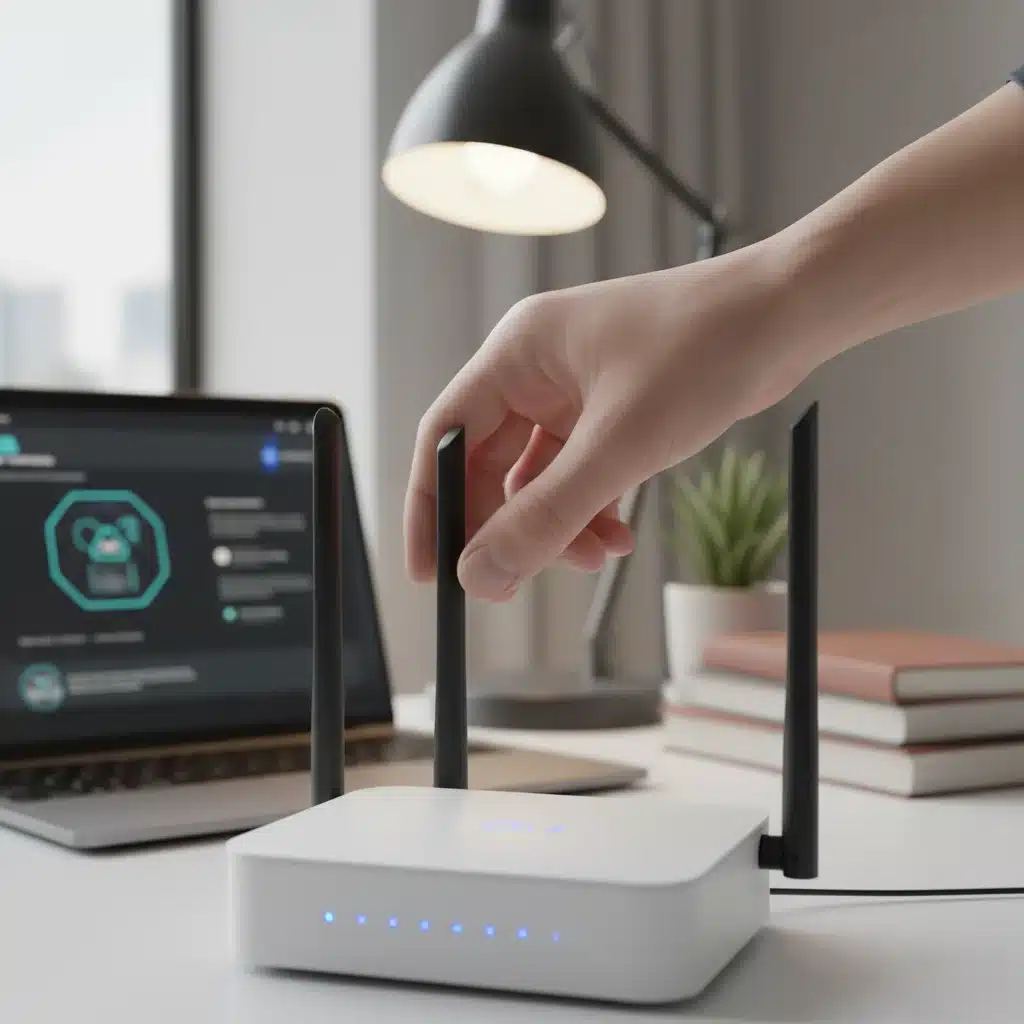
9. Consider Upgrading Your Hardware
Sometimes, despite all your optimization efforts, your hardware might be the bottleneck. If your router is several years old, it might not support the latest Wi-Fi standards (like Wi-Fi 6 or Wi-Fi 6E) or have the processing power to handle modern demands. Upgrading your router can be a game-changer for anyone looking to truly optimize home network capabilities for the future.
- Wi-Fi 6/6E Router: These newer standards offer significantly faster speeds, better efficiency, and improved performance in congested environments. If you have many Wi-Fi 6/6E compatible devices, an upgrade is highly recommended.
- Mesh Wi-Fi System: For larger homes or those with significant dead zones, a mesh Wi-Fi system can provide seamless coverage by using multiple access points that work together as a single network. This eliminates the need for range extenders, which often create separate networks and can halve bandwidth.
- Ethernet Backhaul: If you have a mesh system, or even a single powerful router, consider using Ethernet cables to connect stationary devices like smart TVs, gaming consoles, or desktop computers directly to the router. This frees up Wi-Fi bandwidth for mobile devices and ensures the fastest possible connection for those critical devices.
Investing in newer hardware, when necessary, is the ultimate step to comprehensively optimize home network infrastructure for peak performance in 2026 and beyond.
Troubleshooting Common Home Network Issues
Even with an optimized network, occasional issues can arise. Knowing how to quickly troubleshoot can save you a lot of frustration and help maintain your efforts to optimize home network performance.
Slow Speeds on Specific Devices
If only one or a few devices are experiencing slow speeds, the issue might not be your overall network. Try these steps:
- Restart the Device: A simple reboot of the affected device (laptop, phone, tablet) can often resolve temporary software glitches.
- Clear Browser Cache: For web browsing issues, clear your browser’s cache and cookies.
- Check for Updates: Ensure the device’s operating system and network drivers are up to date.
- Run a Speed Test: Use an online speed test (like Speedtest.net) on the problematic device to confirm the actual speed it’s receiving. Compare this to a device that is performing well.
- Test on Different Bands: If your router broadcasts both 2.4 GHz and 5 GHz, try connecting the device to the other band to see if performance improves.
Frequent Disconnections
If devices are constantly dropping their Wi-Fi connection, it could be due to interference, range issues, or a faulty router.
- Check Router Placement: Revisit step 1 and ensure your router is in an optimal location, away from interference sources.
- Change Wi-Fi Channels: As discussed in step 6, interference from neighboring networks can cause disconnections.
- Update Router Firmware: Outdated firmware can lead to instability.
- Check for Physical Damage: Inspect router cables and antennas for any visible damage.
- Consider a Mesh System: For widespread disconnection issues in a large home, a mesh Wi-Fi system might be the best solution.
Internet Outages
If your entire internet connection goes down, the problem might be upstream from your router.
- Check Modem Lights: Your modem (if separate from your router) will have indicator lights. Consult your modem’s manual to understand what each light signifies. A red or flashing light often indicates a problem with your internet service provider (ISP).
- Contact Your ISP: If modem lights indicate an issue, or if a router reboot doesn’t restore service, contact your ISP. There might be an outage in your area or an issue with your service.
- Check Cables: Ensure all cables connecting your modem to the wall and to your router are securely fastened.
Proactive troubleshooting and monitoring are integral to continuously optimize home network reliability.

The Future of Home Networks: What to Expect in 2026 and Beyond
As we move further into 2026, the demands on our home networks will only continue to grow. With the proliferation of 8K streaming, VR/AR applications, and an ever-increasing number of smart home devices, a robust and optimized network isn’t a luxury – it’s a necessity. Future advancements will focus on even greater speed, lower latency, and more efficient management of multiple devices.
- Wi-Fi 7 (802.11be): The next generation of Wi-Fi, also known as Extremely High Throughput (EHT), promises even faster speeds and lower latency than Wi-Fi 6E, utilizing wider channels and more advanced modulation techniques. As devices become available, upgrading to Wi-Fi 7 will be the next major step to optimize home network performance.
- AI-Powered Routers: Routers with integrated AI will become more common, automatically optimizing channel selection, QoS settings, and even detecting and mitigating interference without manual intervention.
- Increased IoT Integration: Expect even more seamless integration of Internet of Things (IoT) devices, with dedicated network segments and enhanced security protocols to handle the influx of smart gadgets.
- Greater Emphasis on Cybersecurity: As more devices connect, the attack surface expands. Future home networks will feature more robust built-in cybersecurity measures to protect against malware, phishing, and other threats.
Staying informed about these trends will help you prepare your network for the future and ensure you can always optimize home network capabilities to meet evolving demands.